
There are two ways to check for the latest updates to the Mailock add-in:
Automatic update checks
By default, Mailock checks for a new version of the add-in every time you start Outlook. If an update is available, you'll be prompted to install it.
We recommend installing updates as soon as they're offered, but if the timing isn't convenient you can decline and install later — Mailock will check again the next time you start Outlook.
This option can be turned off in the add-in setting 'Check for updates on startup'.
Checking for updates manually
If you'd rather not wait for the next prompt — or you've switched off automatic checks at startup — you can run a check yourself at any time by clicking on the 'Mailock' tab to open the Mailock ribbon, then clicking 'Check for Updates'.
One of two things will happen next:
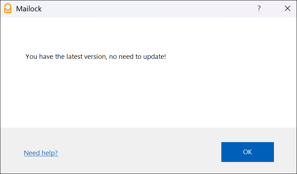
- You're already on the latest version: you'll see a confirmation message letting you know there's nothing to install:
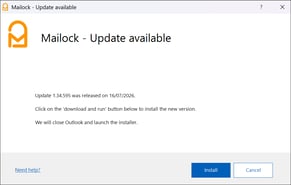
- An update is available: click 'Install' to continue (read more on the install) or 'Cancel' to install it later:
If you don't see the 'Check for Updates' button, or you get a prompt to enter a userid and password when installing the update, get in touch with your IT team.
Checking which version you're currently running
If you want to confirm which version of the add-in you have installed — see How do I find out which version of the Outlook add-in I'm using?