
What is an identity check?
An identity check confirms you are who you say you are. You'll photograph your passport or driving licence and record a short selfie video on your phone. Your results are then sent securely to the company that asked for the check.
You don't need to create a Mailock account or install an app, and the check usually takes a few minutes.
If you weren't expecting an identity check, contact the company that sent it before you start. Use a phone number you already know, not one from the email.
Before you start
Make sure you have:
- Your mobile phone, to receive a code by text, photograph your document and record a selfie video
- A valid (in-date) passport or driving licence
- A well-lit spot where you can photograph your document clearly
Set aside a few minutes so you can complete the check in one go.
Completing your identity check
You'll receive an email asking you to complete an identity check. Click or tap 'Start identity check':
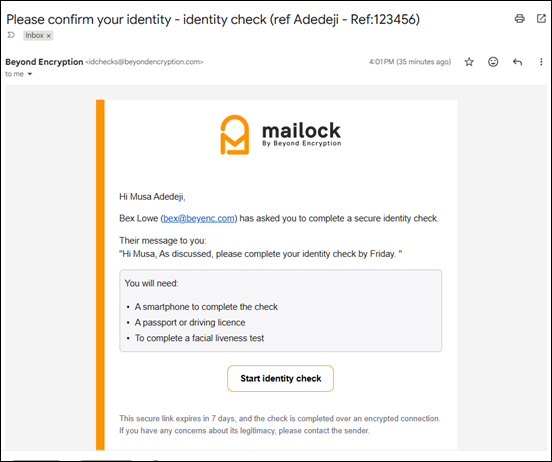
The link in the email expires after 7 days.
Click 'Send Me The Code' to receive a 6-digit code by text message:
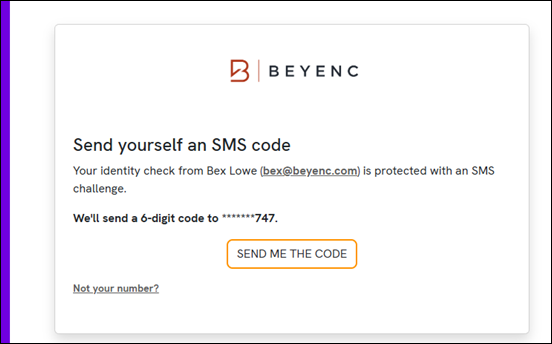
If the mobile number shown isn't yours, contact the company that sent the request.
Enter the code from your text message (sent from Mailock), then click 'Unlock Identity Check':
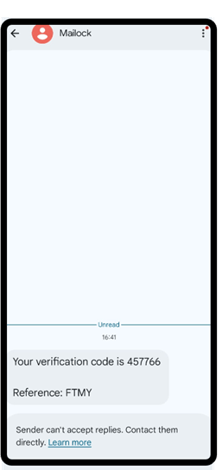
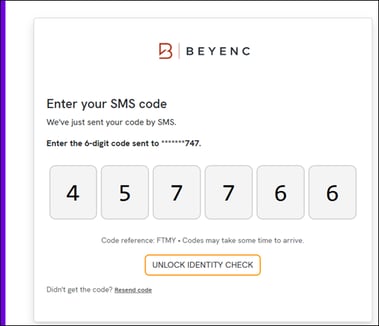
To check you’re using the right code, match the 4-character reference on screen to the one in your text message. If the code doesn’t arrive, click ‘Resend code’.
You can request up to 3 codes in total. This includes any codes sent if you close the check and come back to it later. If you use all 3, ask the organisation to send the request again.
Click 'Continue To Identity Check':
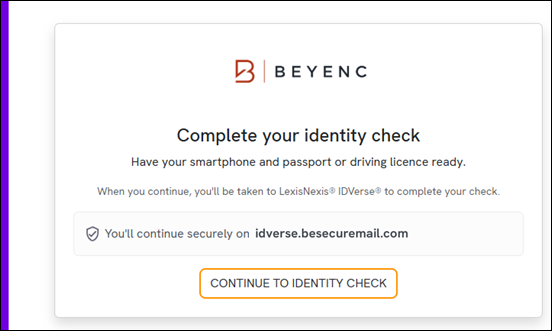
If you're on a computer, scan the QR code with your phone's camera to continue on your phone:
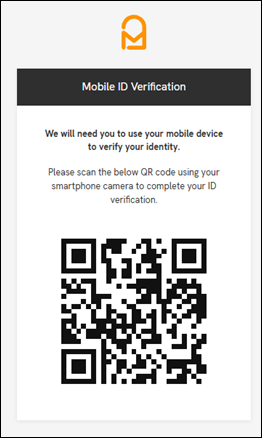
Read the privacy notice. If you're happy to continue, tick the consent box, then tap 'Continue':
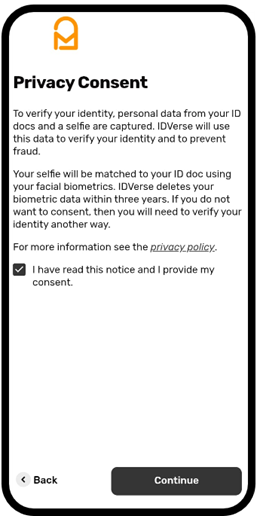
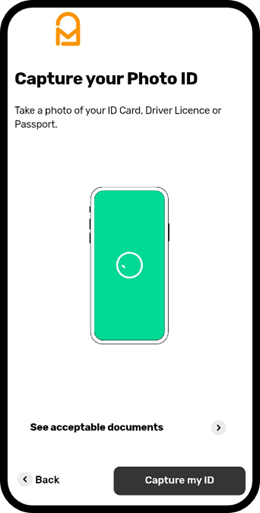
Tap 'Capture my ID' and follow the on-screen instructions to photograph your passport or driving licence. To see which documents you can use, click 'See acceptable documents':
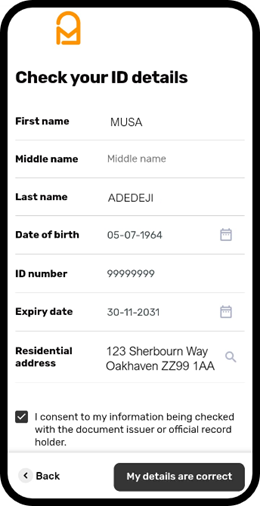
Check the details taken from your document. You can update the dates and address if they’re incorrect. When you're ready, tick the consent box, and tap 'My details are correct':
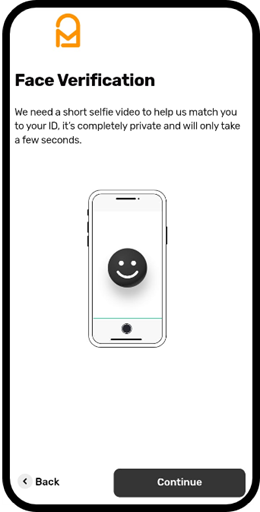
Tap 'Continue' and follow the on-screen instructions to record a short selfie video. This matches your face to the photo on your document:
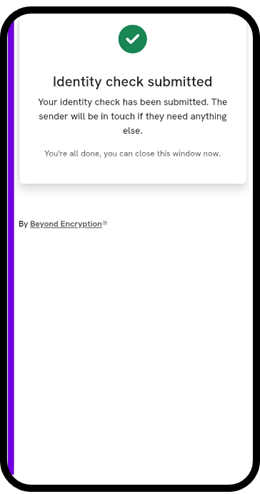
When you see 'Verification complete', your Identity check is done. There's nothing more you need to do:
What happens next
Your results are sent securely to the company that requested the check. They'll review them and contact you if they need anything else.
You won't receive a copy of the results from Mailock. If you have questions about the outcome, get in touch with the company who sent you the check.