When your client completes their identity check, we'll send you the results as a secure Mailock message. You can open it in the Mailock web app or using the Mailock Outlook add-in, whichever you prefer. It doesn't matter which one you sent the request from.
You need two-factor authentication switched on to use identity checks. Find out how to turn on two-factor authentication (2FA).
Opening your results
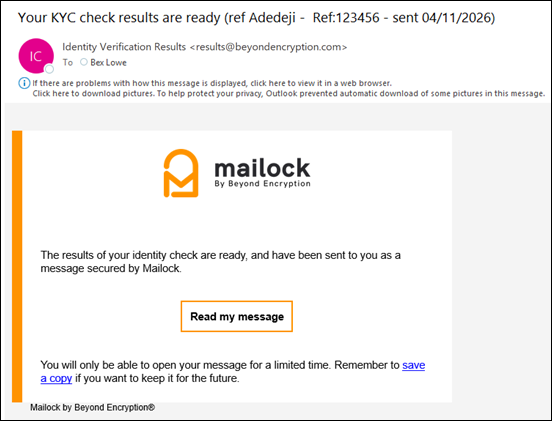
You'll receive an email from results@beyondencryption.com. The subject line shows the check type, your reference and the date the check was sent, for example 'Your KYC check results are ready (ref Adedeji - Ref 123456 - sent 04/11/2026)'.
In the Mailock web app
Open the email and click 'Read my message':
You'll be asked to sign in to your Mailock account using 2FA.
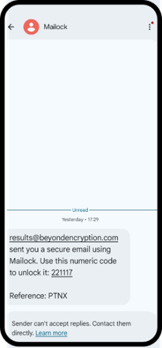
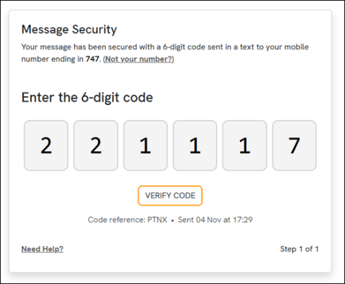
A code is sent to your mobile at the same time as the email. Match the 4-character reference included in the text message with the one shown on the screen to confirm you have the right one. Enter the code and click 'Verify Code':
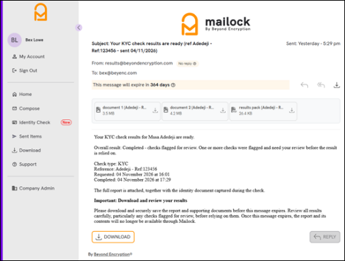
Your results open as a secure Mailock message:
Downloading your results
Your results message includes:
- The results pack (PDF)
- Images of the identity document your client captured during the check
Each attachment can be downloaded individually by clicking on the download button ( ) to the right of each attachment. Alternatively, click 'Download' to save the email and its attachments as an EML message which can be opened by most email apps:
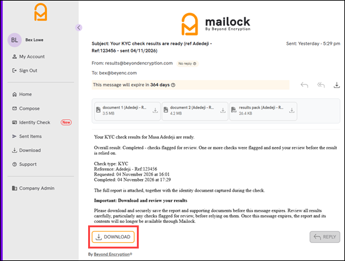
Your results email expires after 30 days. Once it's opened, there is a message showing how many days you have left. Download and securely save your results before then, as they won't be available through Mailock once it expires.
To find out more about your results click here.