Integrations > Outlook
Secure your
Outlook emails
Secure email add-in for Outlook
Protect sensitive messages and attachments and verify recipients, all without changing how your team composes email in Outlook.
or, install the Outlook add-in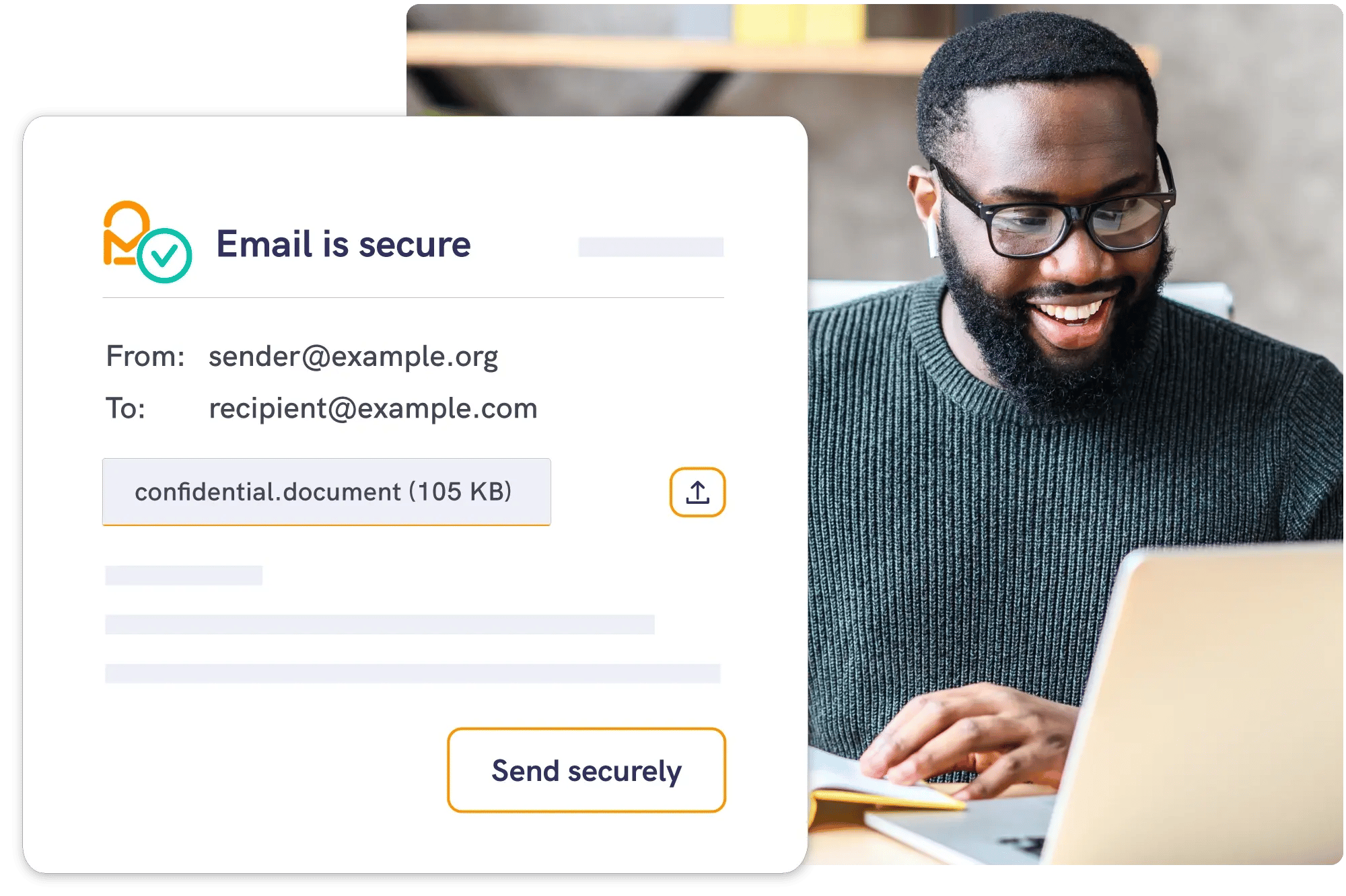



Protect sensitive
email in a *click*
Compose in Outlook as usual. Switch on Mailock®, choose the recipient check that fits the message, and send securely for a branded, recipient experience.
- Protect messages and attachments
- Flexible recipient-authentication checks
- Receive secure replies
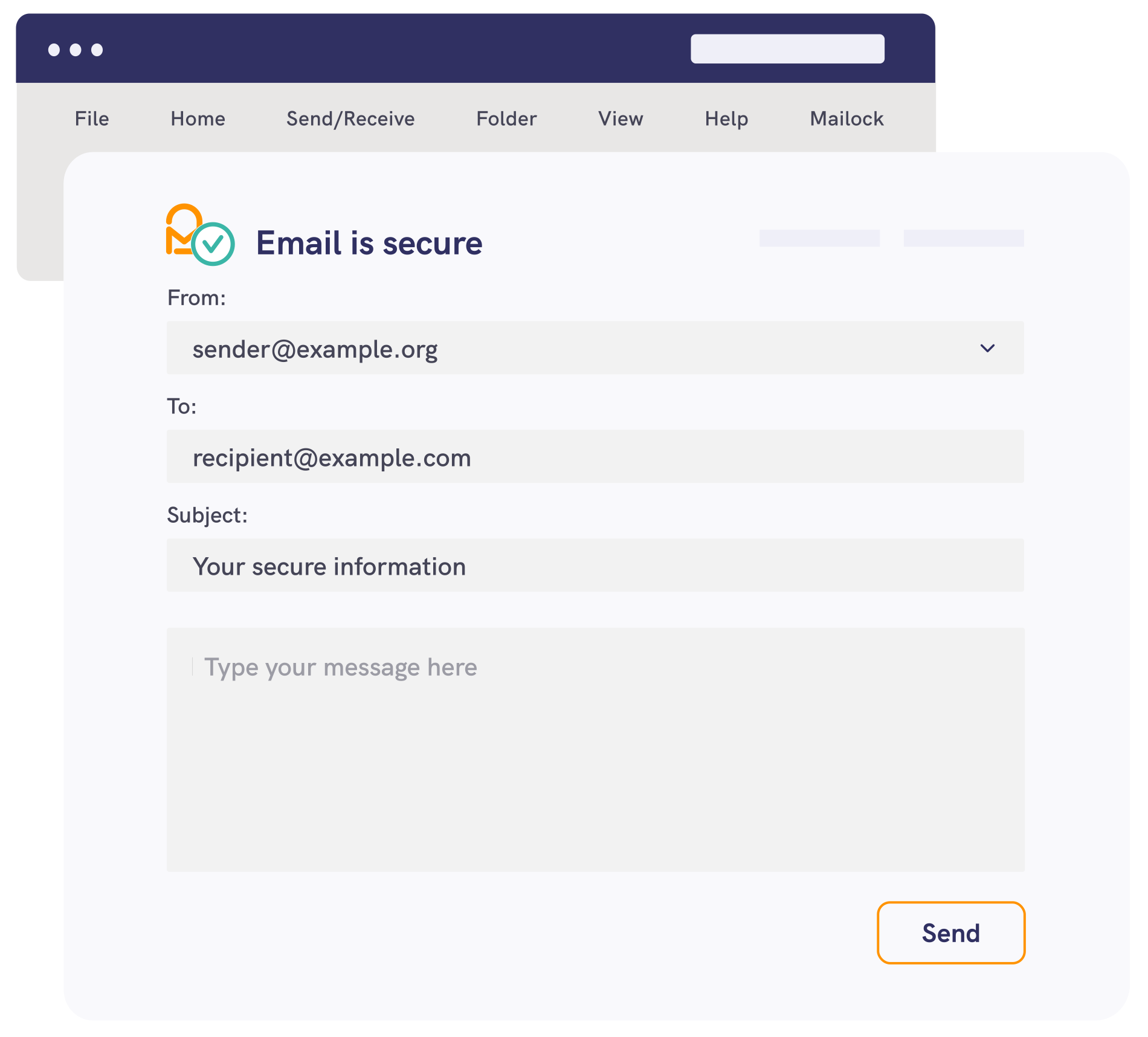
1. Send
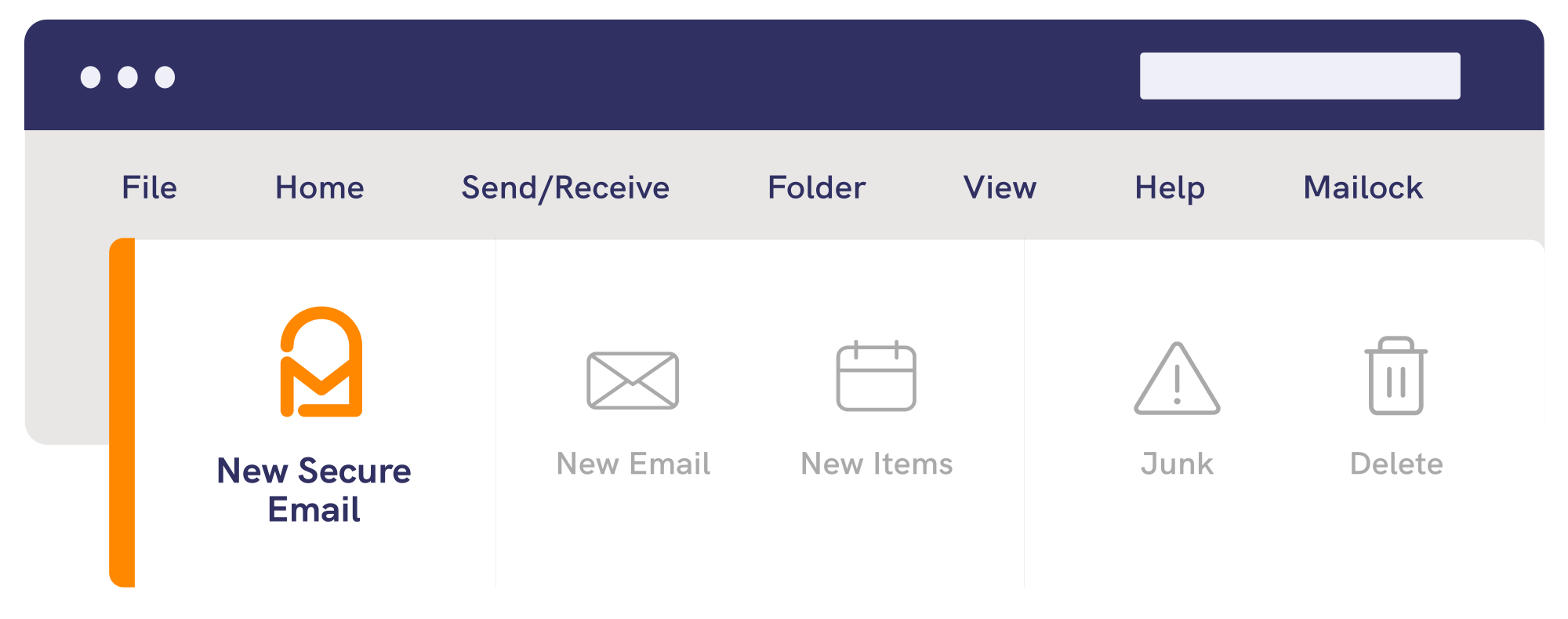
Compose in classic Outlook as usual, then select the Mailock secure toggle from the ribbon.
2. Authenticate
Choose an email code, question, or SMS code challenge.
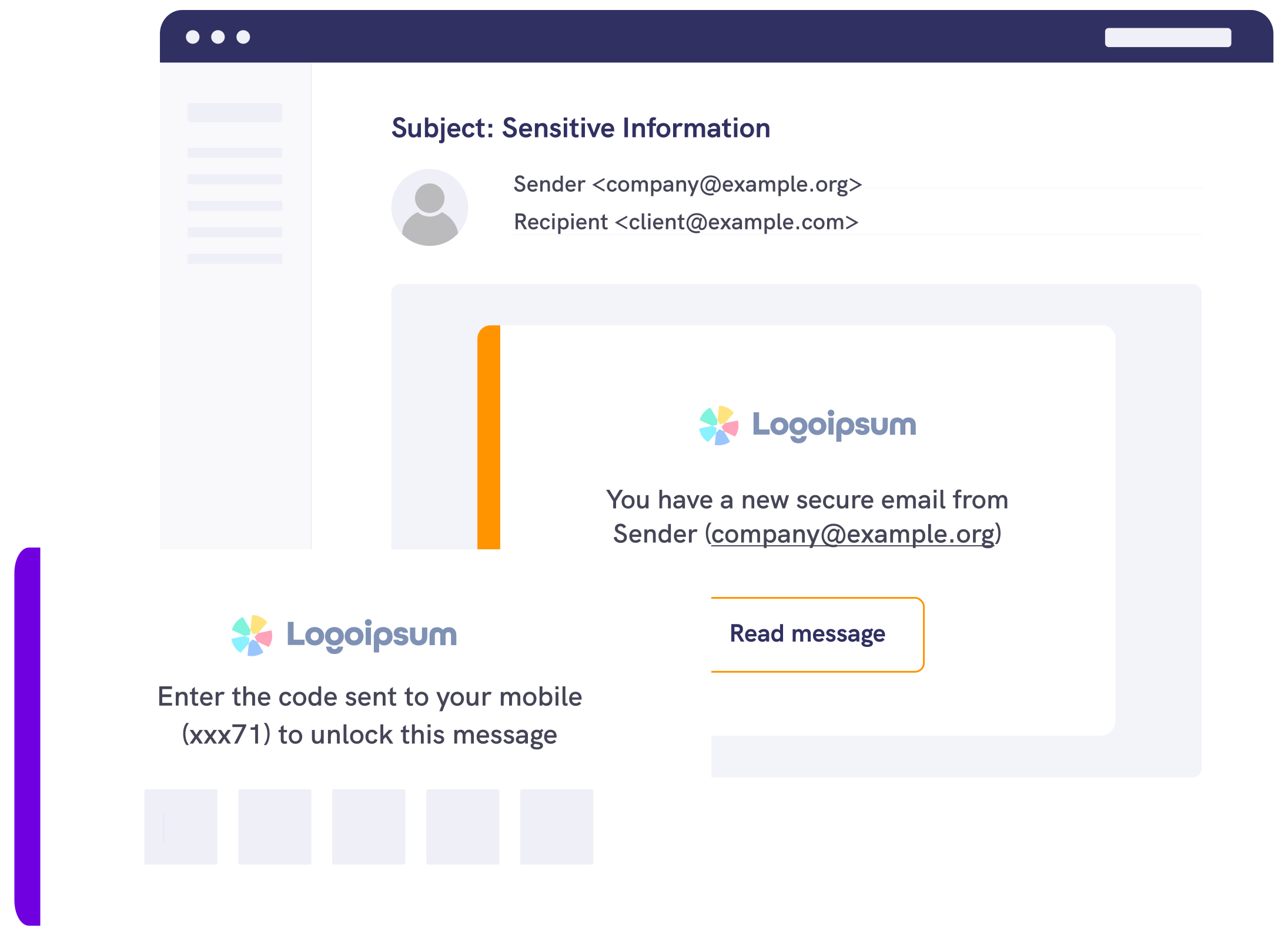
3. Reply
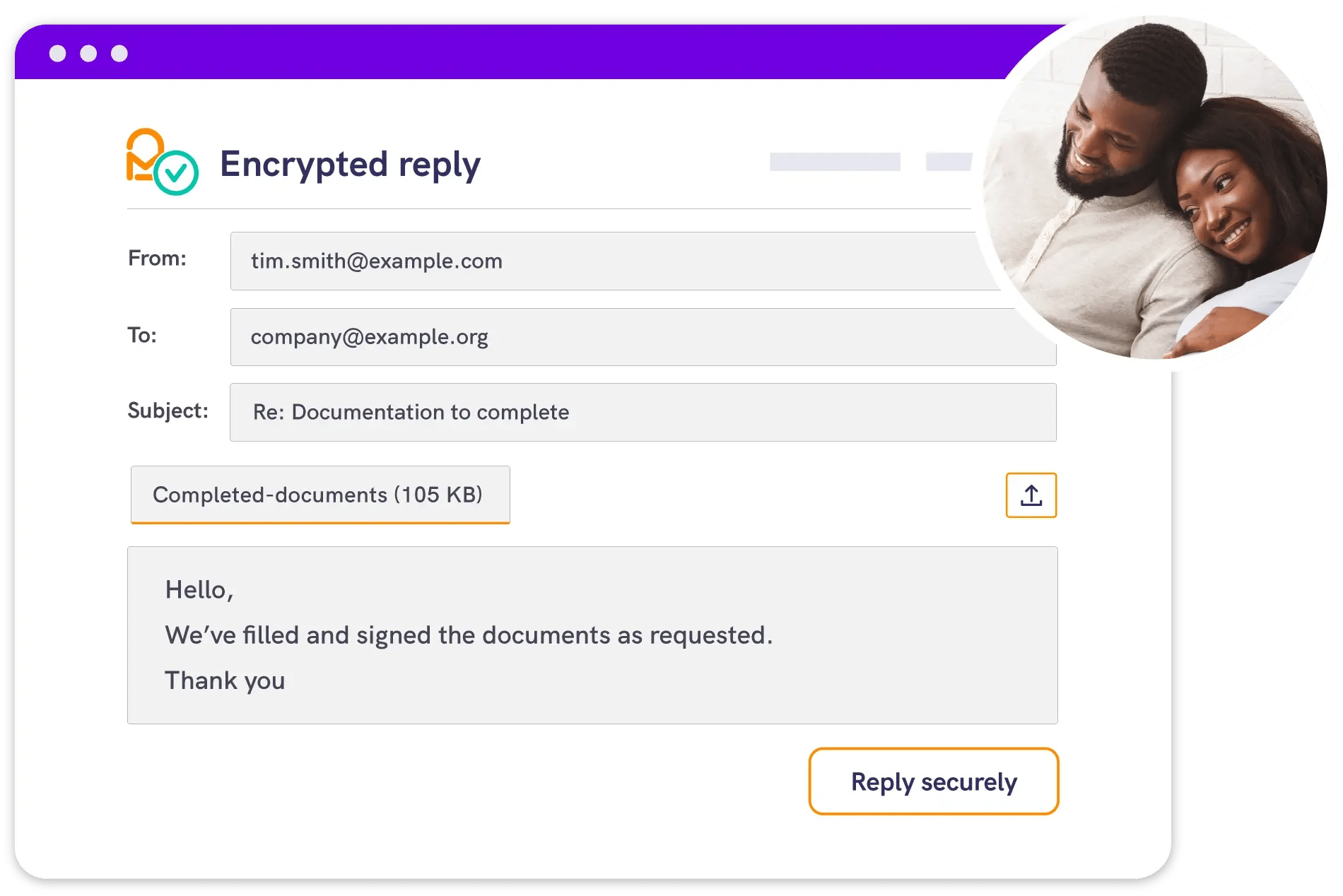
Recipients can read and reply through Mailock on the web or in a supported Outlook setup, keeping sensitive content inside the protected exchange.
Security
Protect the whole
email exchange
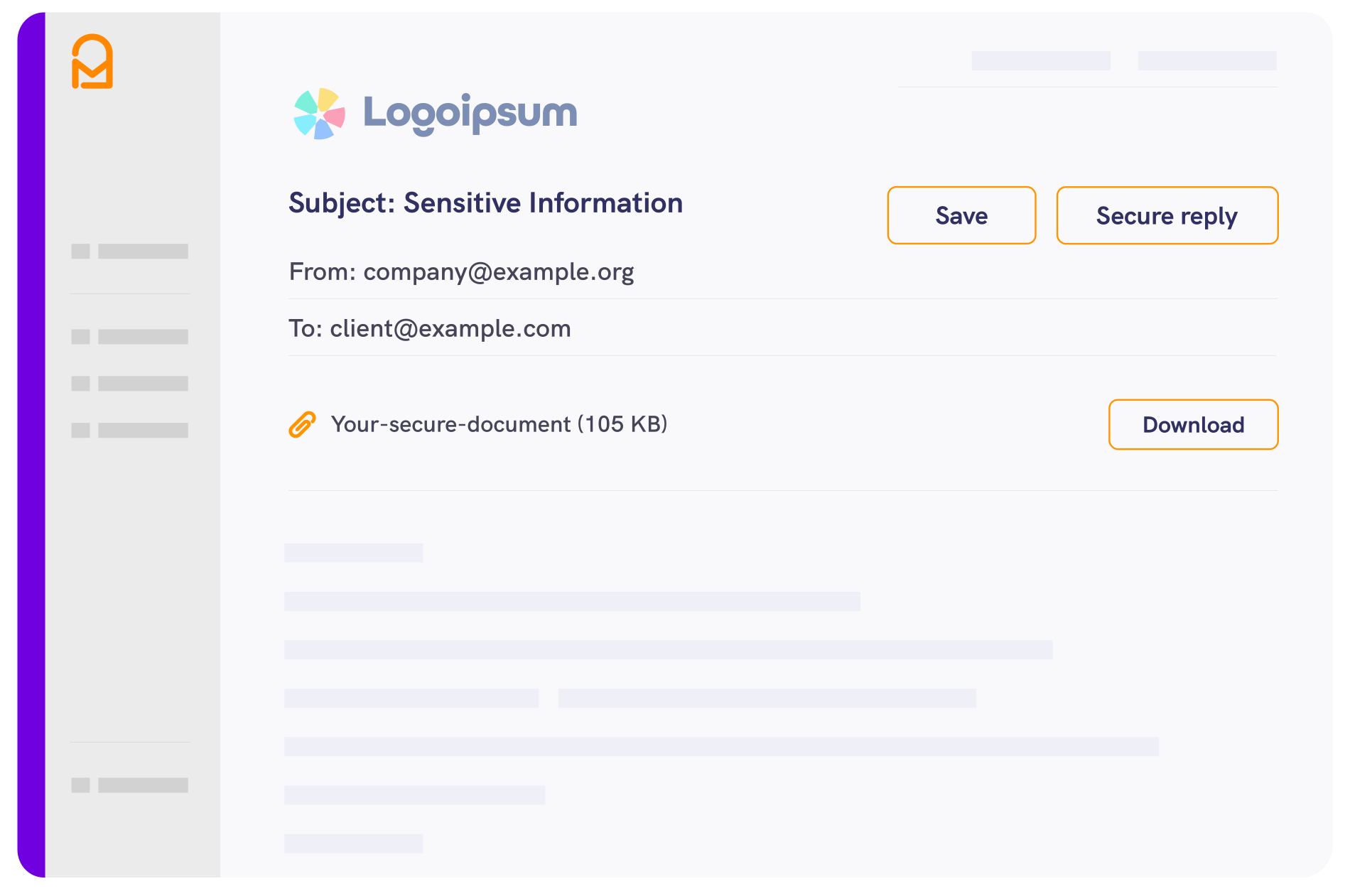
Secure messages, attachments, and replies
Mailock uses AES-256 encryption to help protect sensitive content. Add a recipient check when needed, and keep replies inside the protected Mailock experience.
Sender safeguards
Get a prompt
before you send
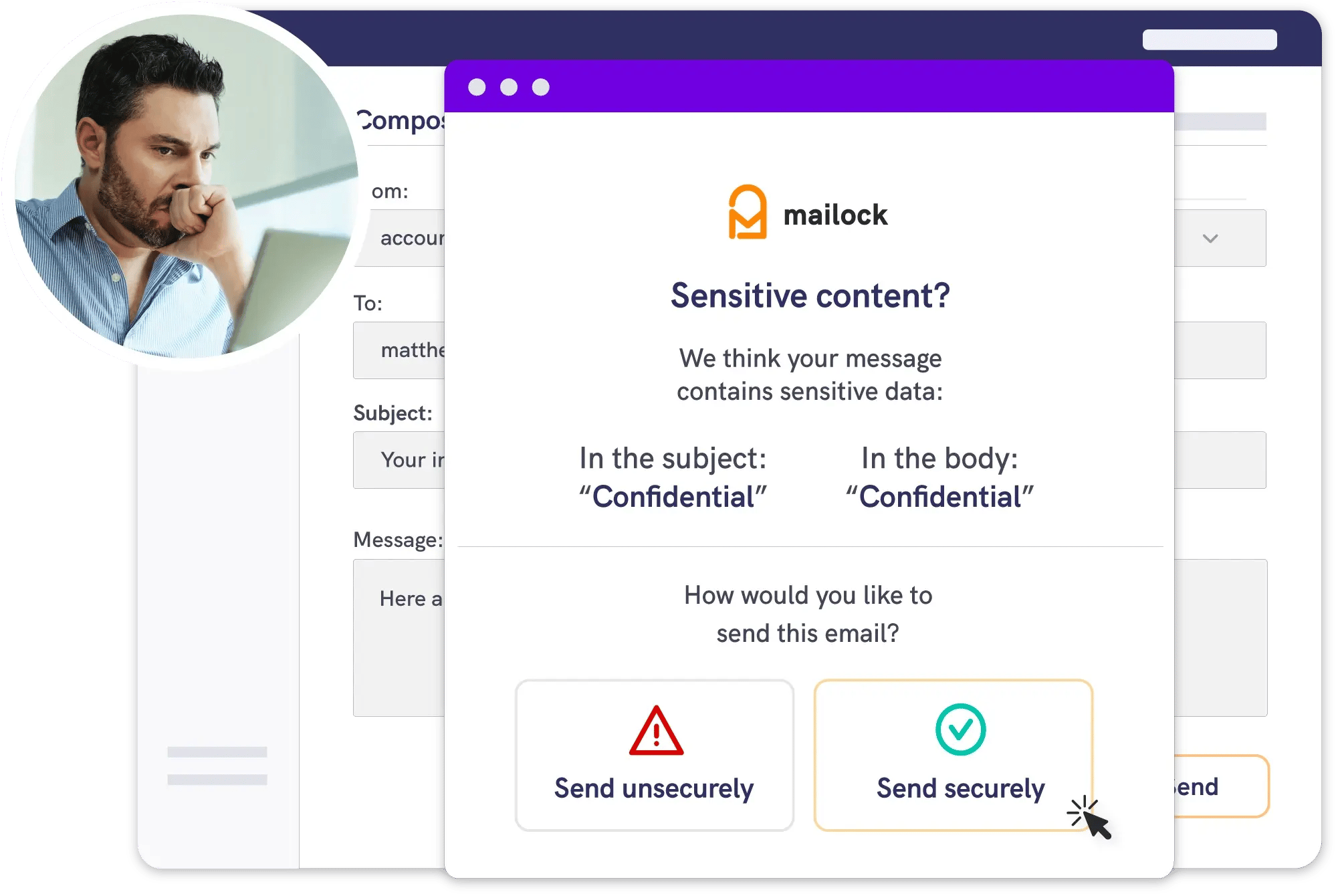
Keep secure delivery front of mind
Mailock security alerts can prompt senders when configured terms are detected, helping teams remember to protect sensitive emails before they leave Outlook.
Post-send control
Stay in control
after you send
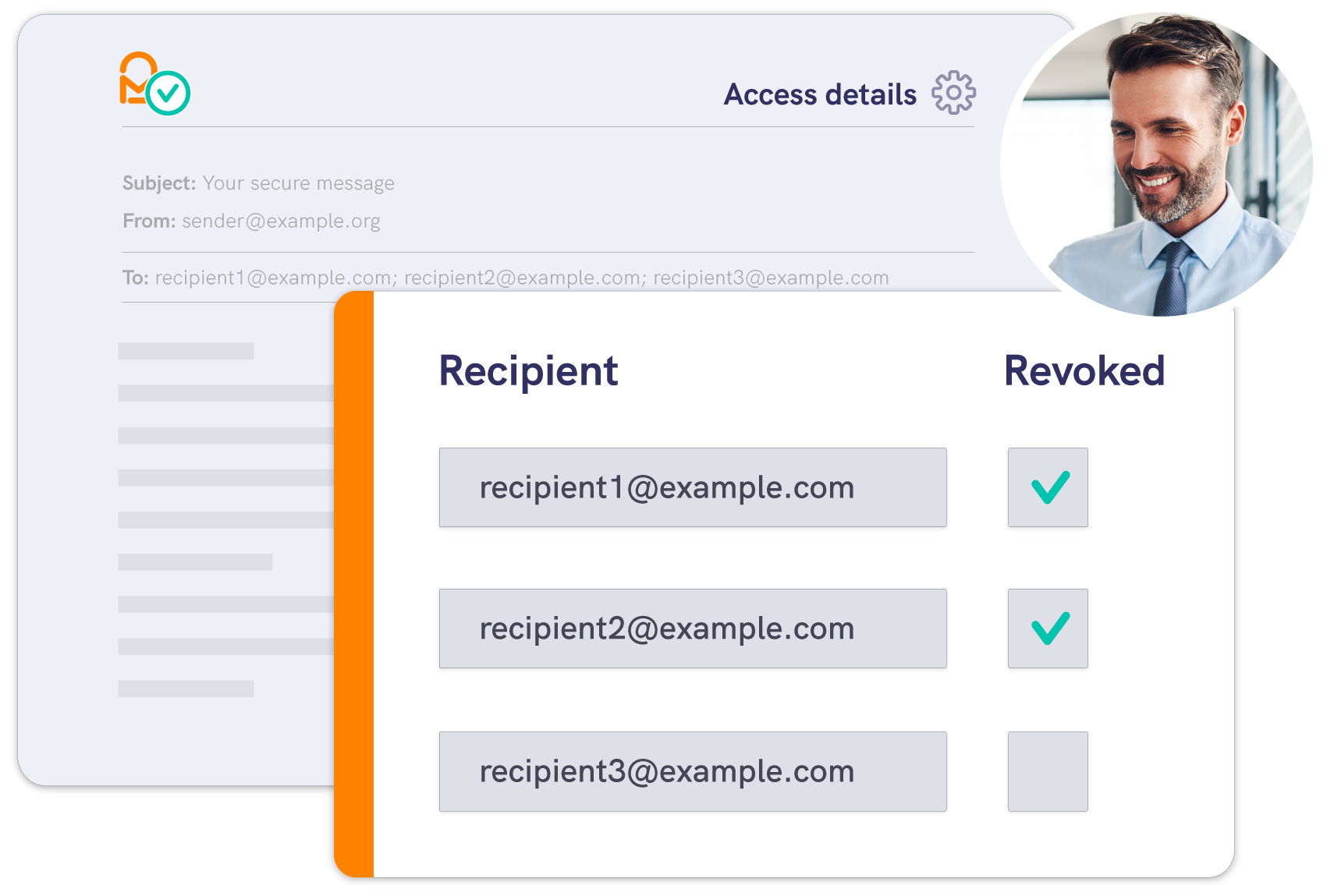
Close access when circumstances change
If an email goes to the wrong address, includes the wrong attachment, or needs to be withdrawn, Message Revoke lets the sender stop future access - including after a message has been opened.
Testimonial
Click the Mailock button and off you go!
The Mailock secure email toggle just sits there in Outlook - you click secured or unsecured, and off you go.







Features
Mailock features for Outlook
Give senders practical controls before, during, and after delivery from a workflow they already know.

Compose
Compose in Outlook as usual, then select Mailock and choose the recipient check for the message.

Encrypt
Protect sensitive messages and attachments with AES-256 encryption.

Prompt
Use security alerts to prompt secure delivery when configured terms are detected.

Authenticate
Choose an email code, question, or SMS code challenge, plus Unipass ID sign-in for financial services where available.

Identify
Send ID, KYC, and AML checks from Outlook. The results pack comes back by secure email.

Reply
Recipients reply securely on the web or in a supported Outlook setup.

Track
Message Tracker helps senders see when secure messages have been accessed.

Revoke
Prevent future access to a protected message, including after it has been opened.

Pricing
Mailock pricing plans
Compare current Mailock plans to find the right option for your sending workflow.

Mailock Pro
For professionals and teams
Use Mailock Pro in Outlook for Windows or through the Mailock web app.

Use Cases
For financial advisers
See how Mailock helps advisers protect sensitive client communications.

Questions?
See Mailock in your Outlook workflow
Book a demo to walk through secure sending, recipient checks, and post-send controls with our team.

Egress Alternatives: Secure Email Options Compared
Reviewing Egress, now part of KnowBe4? Compare six alternatives on how recipients get in, where each fits, and what to check at renewal.

SendSafely vs Mailock: Secure Email and File Transfer Compared
SendSafely and Mailock compared on encryption, recipient access, replies, file transfer, hosting, pricing, and identity checks.

Business Email Security: What Is An Impersonation Attack?
Learn what an impersonation attack is, how it works in business email security, and the practical steps your team can take to reduce risk.